Why clear the cache in FiveM?
Clearing the cache in FiveM becomes essential when you start to notice FPS drops, falling into the void, or overall performance loss.
I myself am forced to clear my cache at least twice a month. Otherwise I keep “limbing” and only I know how many times I’ve gone to the void in the middle of an action, with a patrol car, colleagues, etc.
How to clear the cache in FiveM?
Unfortunately, this cache‑clearing task is not automatic or permanent. You need to repeat this process at least once a month. It’s possible to create a “.bat” file to automate this process, which will delete all your cache as soon as you run it. Just open a new text document, paste the code below, save as, give it whatever name you want ending in .bat, and run it.
rmdir /s /q “%LocalAppData%\FiveM\FiveM.app\cache\browser”
rmdir /s /q “%LocalAppData%\FiveM\FiveM.app\cache\db”
rmdir /s /q “%LocalAppData%\FiveM\FiveM.app\cache\priv”
rmdir /s /q “%LocalAppData%\FiveM\FiveM.app\cache\servers”
rmdir /s /q “%LocalAppData%\FiveM\FiveM.app\cache\subprocess”
rmdir /s /q “%LocalAppData%\FiveM\FiveM.app\cache\unconfirmed”
del /s /q /f “%LocalAppData%\FiveM\FiveM.app\crashometry”
del /s /q /f “%LocalAppData%\FiveM\FiveM.app\launcher_skip_mtl2”
del /s /q /f “%LocalAppData%\FiveM\FiveM.app\session”
rmdir /s /q “%LocalAppData%\FiveM\FiveM.app\plugins”
rmdir /s /q “%LocalAppData%\FiveM\FiveM.app\mods”
rmdir /s /q “%LocalAppData%\FiveM\FiveM.app\logs”
rmdir /s /q “%LocalAppData%\FiveM\FiveM.app\crashes”
del /s /q /f “%LocalAppData%\FiveM\FiveM.app\caches.XML”
del /s /q /f “%LocalAppData%\FiveM\FiveM.app\adhesive.dll”
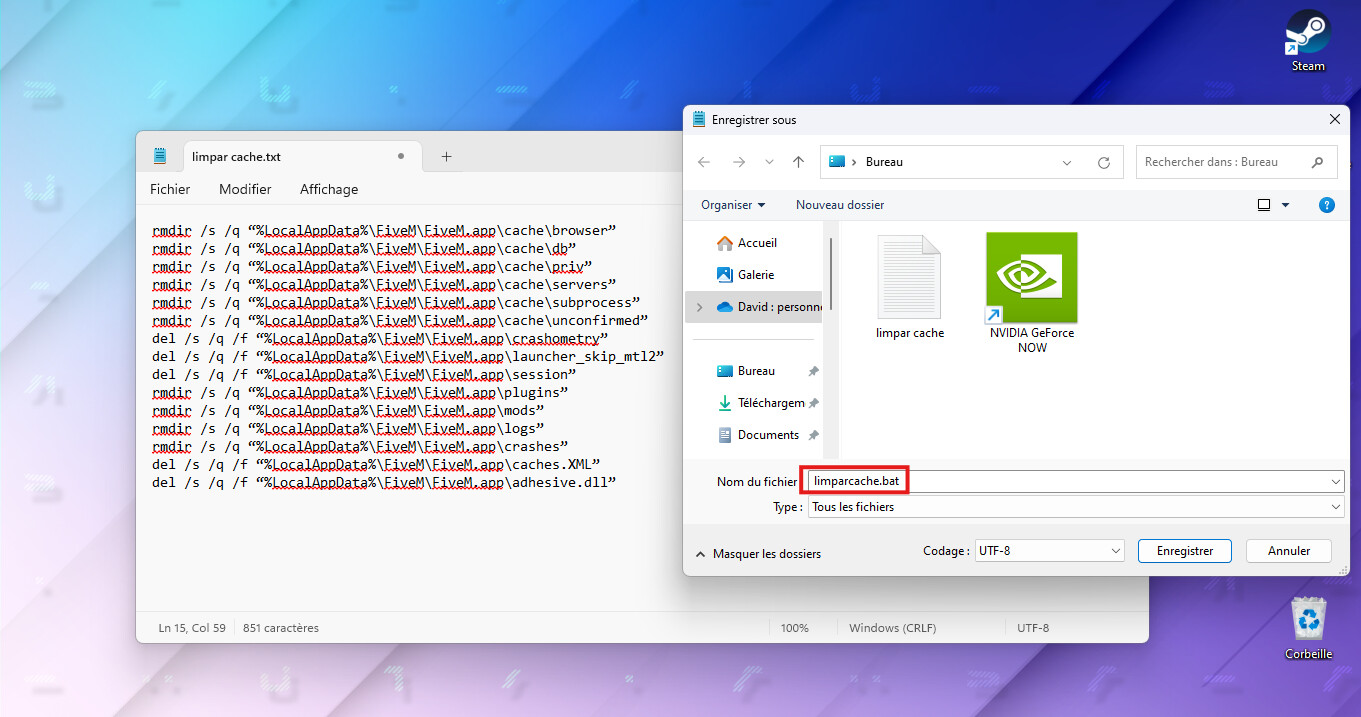
But if you want to do this manually, just follow these steps:
- If you’re in the game, exit and go to where the FiveM executable is
- Right‑click the executable icon and click “Open file location”
- Go into “FiveM Application Data” and remove the “logs” and “crashes” folders
- Go into the data folder and remove all folders EXCEPT game-storage
Done! Now that your cache has been completely deleted, your game will run more smoothly. Remember to repeat these steps frequently or as soon as you start having problems.
For better results, optimize your in‑game graphics settings. Lower image quality and disable unnecessary effects.
Have a good RP!